AI-generated code can create real accessibility barriers. Whether it is making the web less accessible overall is harder to establish. The studies below show failures in generated interfaces, but they do not prove a web-wide decline caused by AI.
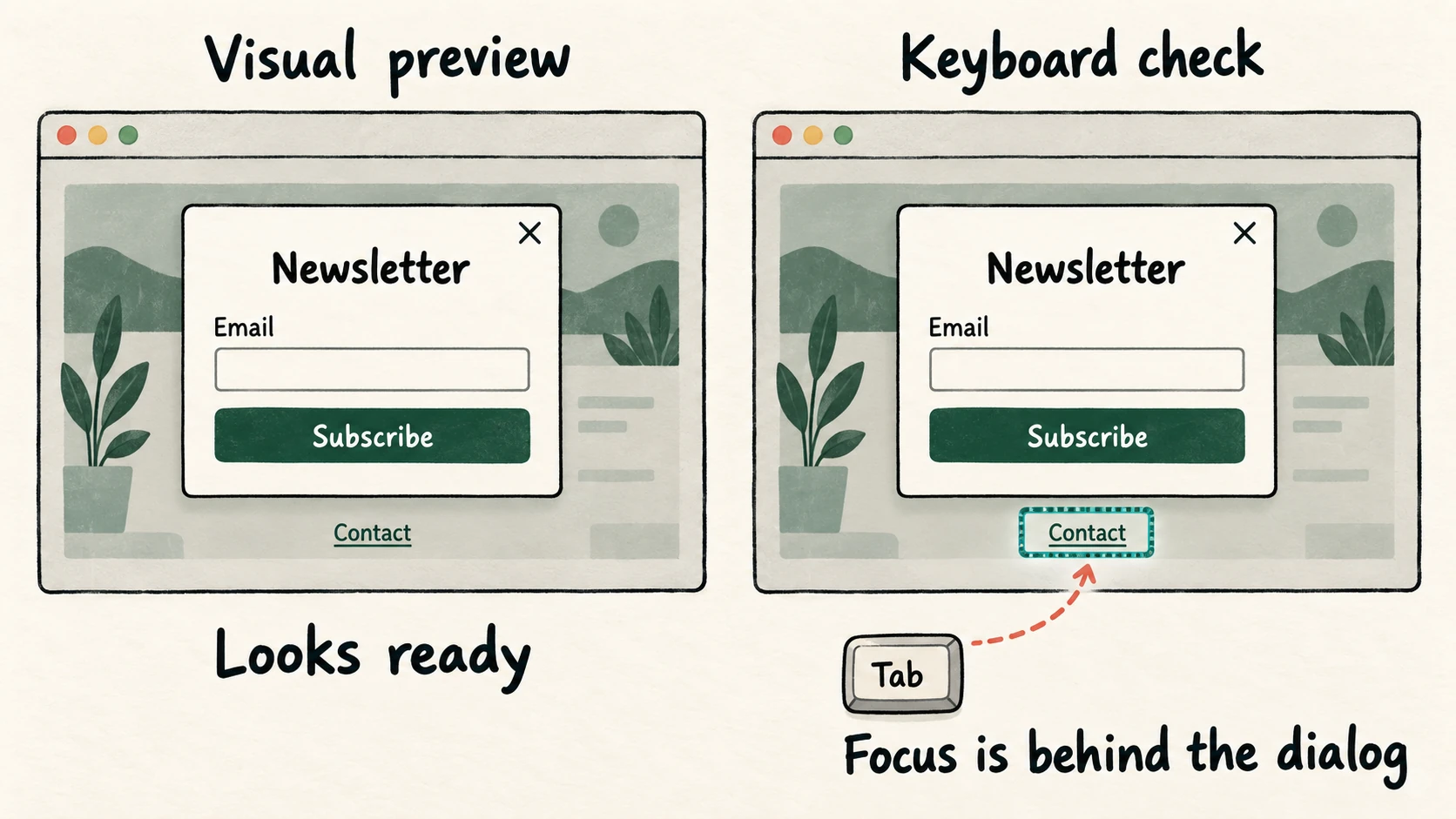
For someone building a website, the immediate risk is easier to understand. You ask an agent for a newsletter popup. It looks right, opens when clicked and accepts an email address. You approve it. Later, someone using a keyboard opens it and finds that Tab keeps moving through the page behind the popup. They cannot reach the form reliably.
The preview passed the checks you gave it. Those checks missed part of the interaction.
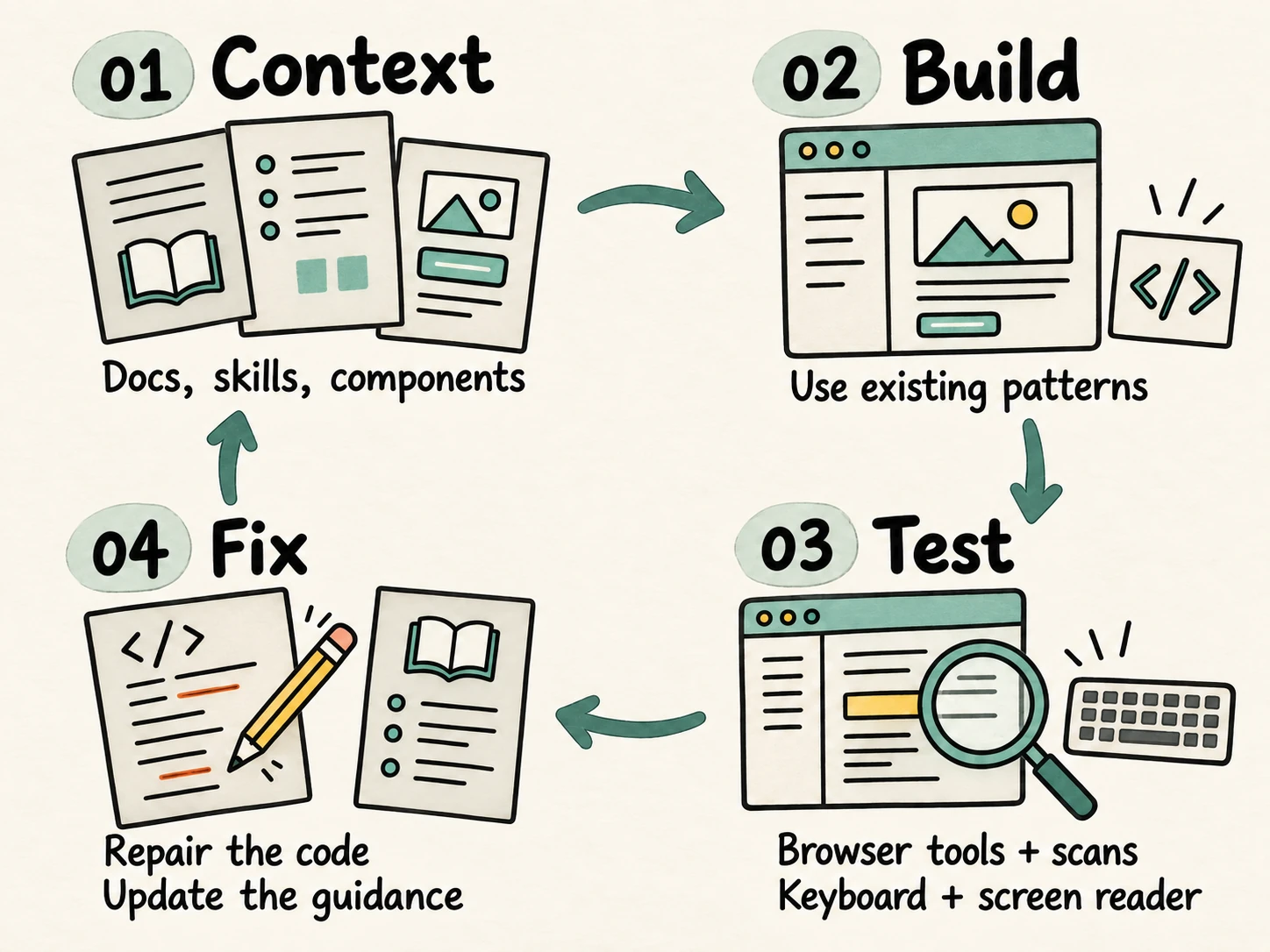
That is where accessibility context matters in an agentic or vibe coding workflow: describing the behavior people need, giving the agent reliable examples, and making it check the result while changes are still easy to make.
What the evidence actually shows
The AI Model Accessibility Checker, or AIMAC, tests what models produce when accessibility is left out of the prompt. The GAAD Foundation and ServiceNow ask models to build pages across 28 categories, then evaluate the output with axe-core, an automated accessibility testing engine.
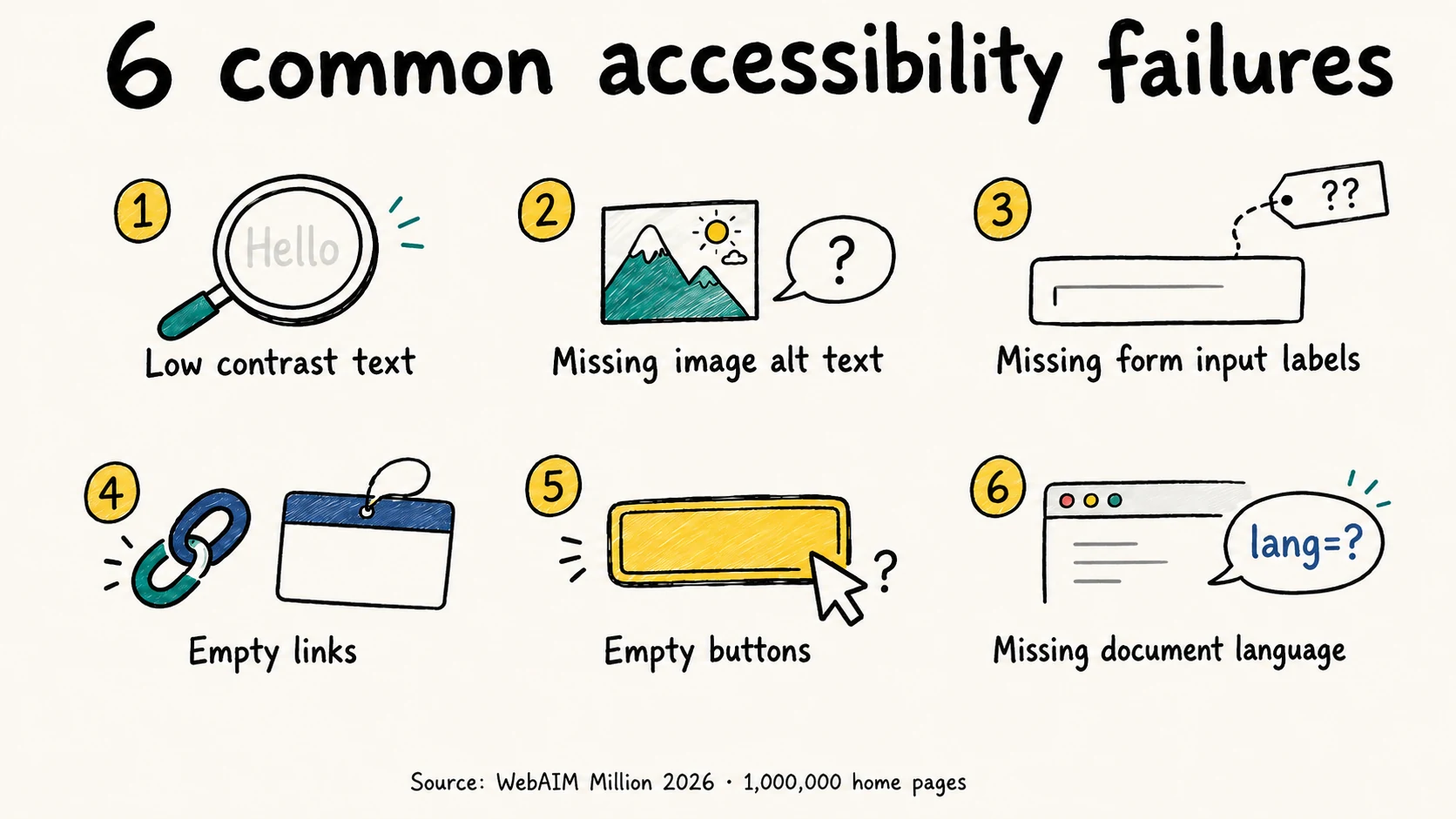
In the leaderboard updated August 22, 2026, even the two models with a median accessibility debt score of zero had violations across the full run: 22 and 20 respectively. A zero median did not mean every generated page passed. Low text contrast, empty links and missing form labels were among the problems found.
That is evidence of unreliable defaults. It is also a specific experiment: generated pages, a defined set of prompts and automated checks. It does not measure your repository, your instructions or what a developer fixes before release.
There is evidence against assuming that human code always does better. A 2025 study by researchers at UC Irvine used GPT-4o and Qwen2.5-Coder to recreate code from ten web projects. The generated code often scored better than the human-written originals on the automated checks, although problems with complex accessibility features remained. Accessibility prompts had mixed results; some changes introduced new conflicts. The researchers' feedback-based refinement method performed better than the other approaches they tested.
This was a small study of two models, using automated evaluators. It supports taking feedback seriously, rather than treating either human authorship or AI authorship as a quality guarantee.
The 2026 WebAIM Million report also found that detected errors on real home pages had increased. It discussed AI-assisted coding as a possible contributor, alongside frameworks and libraries. Its scans do not identify who or what wrote each element, so they cannot isolate AI as the cause.
The practical conclusion is narrower than the headline: AI can generate inaccessible interfaces, and the way you guide and review the work matters.
Why a convincing preview is easy to overtrust
A screenshot can show spacing, typography and color. It cannot tell you where keyboard focus goes when a dialog opens, whether a screen reader announces a validation error, or whether a menu can be closed without a mouse.
Those gaps affect real tasks. A person may be able to find a product but unable to choose its size. They may fill in a form and hear no explanation when submission fails. The page can look finished while the task remains impossible.
Consider the newsletter dialog. Adding role="dialog" and aria-modal="true" describes it to assistive technology; those attributes do not implement focus handling or make the background inactive. The W3C modal dialog pattern describes the behavior needed as well: focus enters the dialog, Tab stays within it, Escape closes it, and focus normally returns to the control that opened it.
If the project already has a tested dialog component, the agent needs to know where it is and how to use it. Otherwise, a request for a small visual change may produce an entirely new implementation with the same old gaps.
Give your coding agent useful accessibility context
Useful context answers three questions: what must this interface do, which existing code should it use, and how will we check it?
You can supply that context through ordinary project files, reusable skills and connected tools. Each serves a different purpose.
Project instructions and accessibility documentation
Keep a short accessibility section in the project instructions your agent actually reads. State the target, such as WCAG 2.2 Level AA, then make the next action concrete. Identify the shared form controls and dialogs, the approved color tokens, and the commands used to run checks.
“Use our existing dialog component; read its example and keyboard tests before changing it” gives the agent more direction than “follow accessibility best practices.” Replace “our existing dialog component” with its real file path.
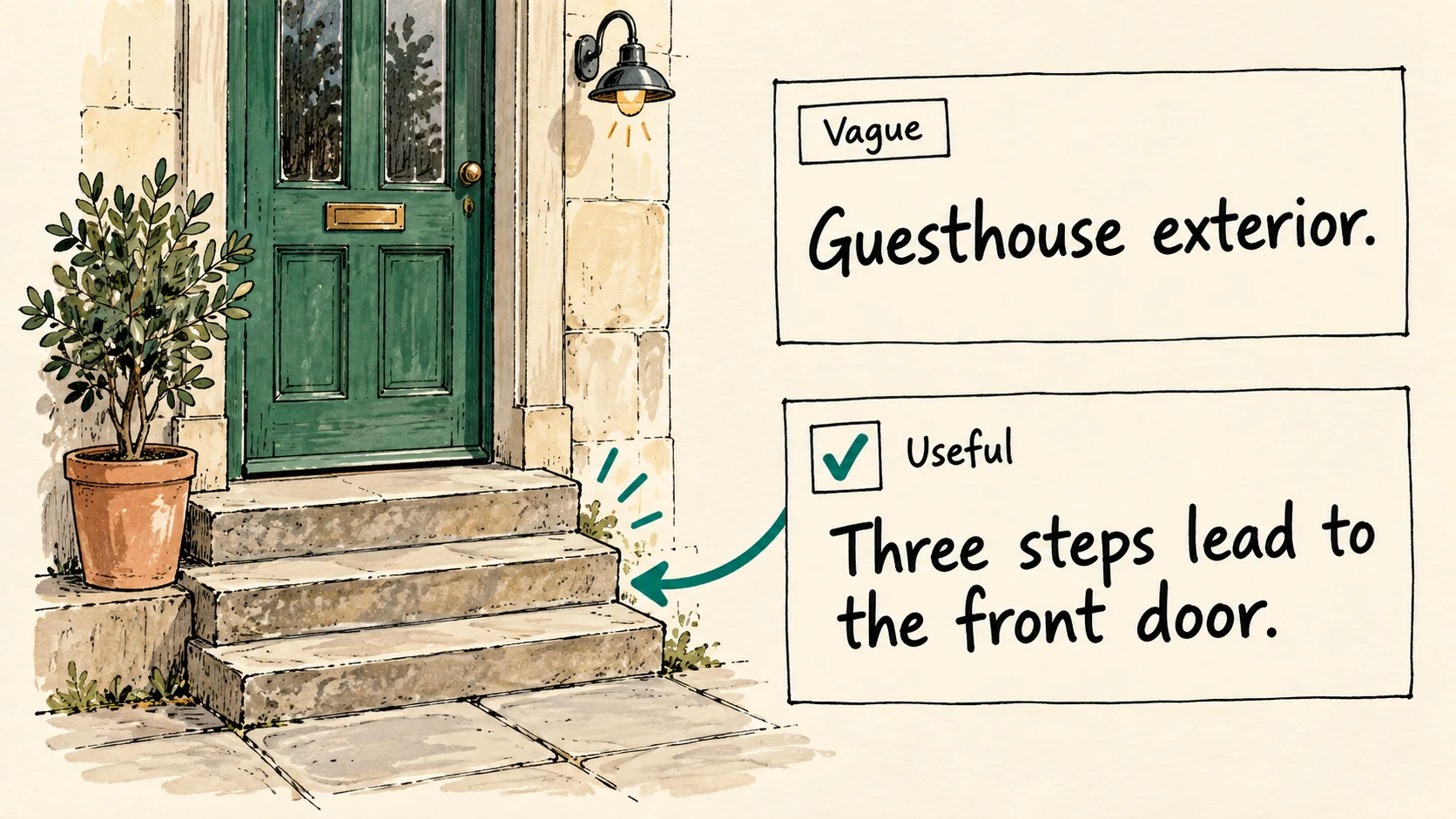
Link the documentation for the component being built. A dialog task needs the dialog pattern; an image task needs guidance on choosing useful alt text. Ask the agent to read the relevant material. A link sitting unread in a repository adds no useful context to the current task.
Keep this guidance small enough to maintain. Start with rules that affect the work you do repeatedly, and add examples when a mistake recurs.
Skills for repeatable work
In tools that support the Agent Skills format, a skill packages task instructions in a SKILL.md file and can include references and scripts. This is useful for a review process you want to repeat across features.
An accessibility review skill could tell the agent to read the changed components, identify interactive states, run the configured scanner, exercise the keyboard path and report unresolved checks. It can point to your own working examples instead of leaving the agent to invent a pattern each time.
Check the skill's contents before adopting it. Look for specific behavior, valid references and commands that work in your project. Confirm that your agent loads it for the task. A skill improves the instructions available to the agent; its presence is not evidence that the resulting interface works.
MCP tools for inspecting the running page
Model Context Protocol, or MCP, lets compatible AI applications connect to tools and sources of context. For accessibility work, that might mean retrieving documentation, opening the local website or receiving a scanner's findings.
For example, Microsoft's Playwright MCP lets an agent operate a browser using structured accessibility snapshots. It can inspect the names and roles exposed by the page and interact with controls. Our guide to accessibility trees and AI agents explains why that information is useful.
A browser snapshot is only part of the evidence. To find automatically detectable WCAG failures, arrange a separate scan, such as the axe-core integration documented by Playwright. Have the agent inspect the page after opening the dialog or triggering an error, too.
Use the tools your workflow already supports. An agent that can run local browser tests and read documentation may have everything it needs without an additional MCP server. The useful capability is access to the working page and its test results.
A better prompt for the next feature
Here is a starting brief for the newsletter example. It describes observable behavior and asks for evidence. Adapt the component names, paths and commands to your project before using it.
Build a newsletter signup dialog for this page.

Before editing:
- Read the project's accessibility instructions.
- Find the existing dialog, input and button components.
- Read their usage examples and relevant keyboard tests.
- Consult the W3C WAI modal dialog pattern.
- Use WCAG 2.2 AA as the accessibility target.

Expected behavior:
- A button named "Subscribe to the newsletter" opens it.
- The dialog has a visible title and an accessible name.
- Focus moves to the email field when it opens.
- Tab and Shift+Tab stay inside while it is open.
- Escape and a clearly named close button dismiss it.
- Closing returns focus to the opening button.
- The email field has a persistent, associated label.
- Validation errors identify the problem in text and are
  associated with the field and announced when they appear.
- A successful signup is announced without moving focus
  unexpectedly.
- Text and controls use the project's checked color tokens.

Verify in the running app:
- Exercise the keyboard path, including closing and reopening.
- Run the configured accessibility scanner with the dialog
  open and with a validation error visible.
- Check the layout at a narrow width and with browser zoom.
- Fix failures and rerun the affected checks.
- Report what ran, what failed and what remains untested.
  If a tool is unavailable, say which check was not run.
This brief is deliberately specific to a small form. A long informational dialog might need initial focus on its heading so that people can read the content in order. Copying the same focus instruction into every dialog would recreate the problem at a different level.
You also need to define the product behavior. Does the form submit without leaving the page? Does the dialog stay open after success? Accessibility instructions work best alongside those decisions, rather than asking the agent to guess them.
Test the whole interaction
Review the generated feature through the task someone will perform. For the newsletter form, that means opening it, entering an invalid address, correcting it, submitting it and closing it.
Use the keyboard yourself. Set the mouse aside. Follow the focus indicator through the interaction. Check that controls are reachable, their order makes sense, and closing the dialog leaves you somewhere useful. An automated click does not establish any of this.
Scan the states you changed. Run automated checks with the dialog open and with errors visible. A scan of the initial page cannot evaluate content that has not been rendered. Include these states in repeatable browser tests where practical.
Listen to the form. Check it with a screen reader, or involve someone experienced in using one. Verify the dialog title, field label, error and success message in context. A nonempty accessible name can still be confusing or misleading.
Check enlarged text and narrow layouts. Use browser zoom and a small viewport. Make sure the form, error message and close control remain readable and reachable without overlap or clipping. Our contrast guide covers checking the actual text and background colors.
Read the agent's evidence. “Accessibility checked” is too vague to review. Ask for the page states tested, the commands or tools used, the failures found and anything left for manual review. A tool that did not run must not become a passed check in the final report.
Playwright's accessibility testing guidance recommends combining automated checks, manual assessment and testing with people with disabilities. Keep that distinction when interpreting an agent's results. A clean scan is useful evidence within its coverage; it cannot establish that everyone can complete the task.
Turn each fix into better context
When a generated field has no label, fix the field. Then check why the agent missed the project's labeled input component. Was the component hard to find? Did the instructions point to an old example? Did a test cover the empty form but skip its error state?
Repair the shared component or example if that is where the problem starts. Add a focused regression check when it can catch the failure again. Update the instructions with the rule the agent actually missed. This is how accessibility work from one feature can improve the next.
You do not need to build an elaborate toolchain before starting. For your next interface change, provide one relevant component example, the applicable accessibility guidance and a concrete test plan. Ask the agent to implement, inspect and revise against those requirements.
AI makes it easier to produce more code. Better context and review give you a way to influence what that code lets people do.
See which of these failures your own page has
One URL, one scan, and the exact element plus the rule it breaks — no signup needed for the first report.
Run a free scanAccessiLume cites primary standards and published research. Guidance checked against primary research and W3C WAI documentation.
- GAAD Foundation and ServiceNow. AIMAC — AI Model Accessibility Checker. Leaderboard and methodology, updated August 22, 2026; accessed September 11, 2026.
- Suh, H., Tafreshipour, M., Malek, S., and Ahmed, I. Human or LLM? A Comparative Study on Accessible Code Generation Capability. Research preprint, 2025.
- WebAIM. The WebAIM Million — 2026 Report. Utah State University.
- W3C Web Accessibility Initiative. Dialog (Modal) Pattern. ARIA Authoring Practices Guide.
- W3C. Web Content Accessibility Guidelines (WCAG) 2.2. W3C Recommendation.
- Agent Skills. Agent Skills Overview. Format and loading behavior.
- Model Context Protocol. Architecture overview. Tools, resources and prompts.
- Microsoft. Playwright MCP. Browser automation through structured accessibility snapshots.
- Microsoft. Accessibility testing. Playwright documentation.