For years, web accessibility has usually been explained in two ways: it is the right thing to do, and it reduces legal risk. Both are true. Yet accessibility still struggles to become a consistent engineering priority. The 2026 WebAIM Million found detectable WCAG failures on 95.9% of the top one million home pages.
Now there is another reason to care.
AI tools can browse websites, fill in forms, compare products, and complete workflows for users. Some of the most widely used tooling for browser agents reads the page's semantic structure rather than its pixels — the same kind of information assistive technologies need.
That makes accessible code useful to both people using assistive technology and software trying to understand the interface.
What is the accessibility tree?
The accessibility tree is a simplified model of a page that the browser builds alongside the visual layout. It describes what each element is rather than how it looks — a control's role, its accessible name, and its current state — and both assistive technologies and browser automation read it.
Instead of caring about colors, spacing, shadows, or visual effects, the tree describes what elements mean.
A checkout button might be represented as:
- Role: button
- Name: Place Order
- State: enabled
A search box might be represented as:
- Role: textbox
- Name: Search products
- State: editable
Screen readers use this information to help users understand and operate a page. Browser automation and AI agents can also use roles, names, and states because they provide a clean description of the interface.
In simple terms, the tree helps answer one question: what can I do on this page?
Why AI agents care about semantic structure
An AI agent controlling a browser generally has several ways to understand a webpage.
Vision. It can take a screenshot and ask a multimodal model to interpret what is visible. This can work, but screenshots contain a lot of information the agent may not need. The model has to reason about position, appearance, and visual relationships.
Raw HTML. It can read the DOM directly. That gives it the full page structure, but modern pages often contain thousands of elements, utility classes, wrappers, scripts, and layout containers. The useful information can be buried inside a large amount of noise.
Semantic or accessibility information. The browser can provide a much smaller description focused on controls, names, roles, and states.
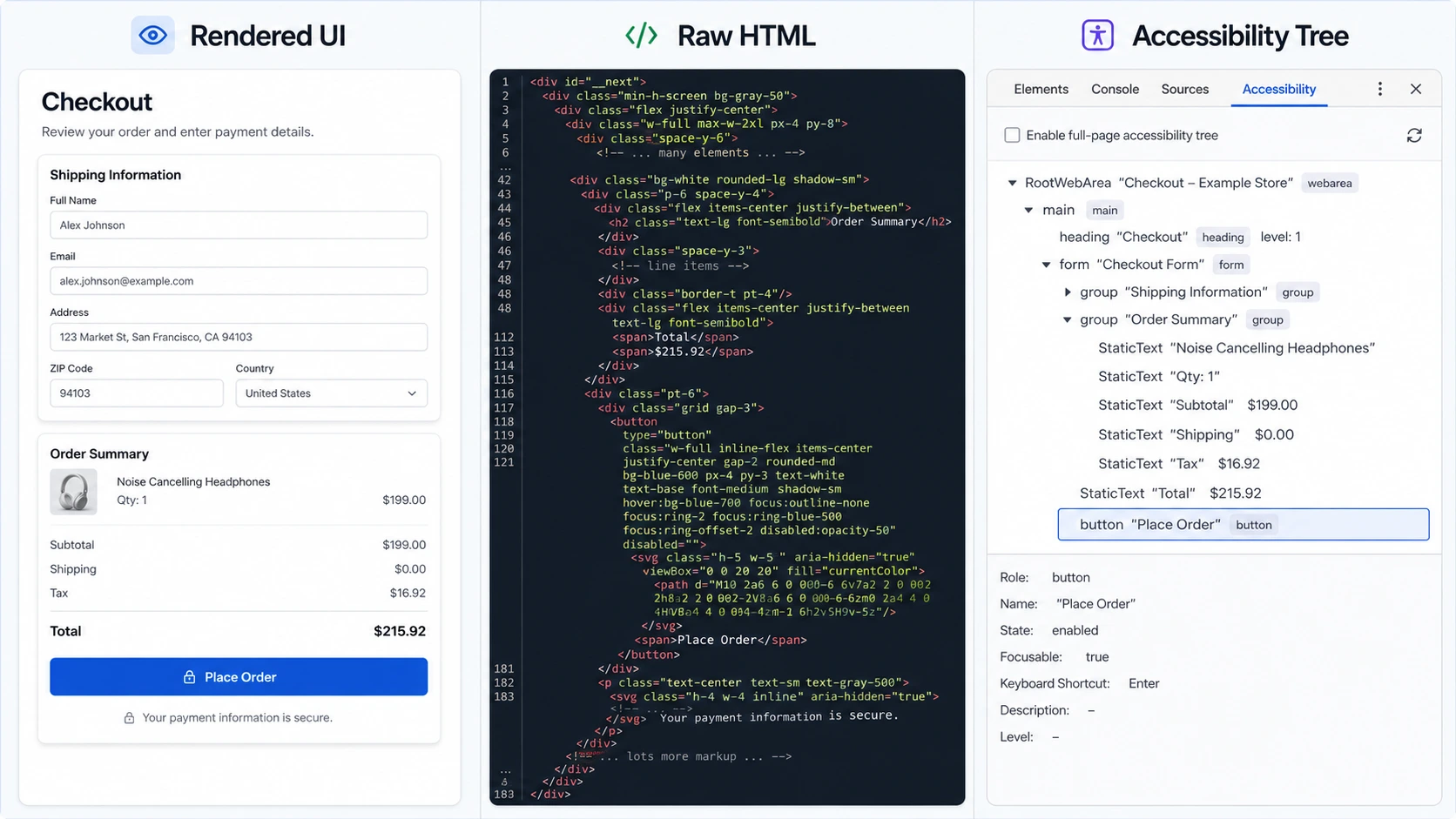
For an agent that simply wants to find the "Place Order" button, the third option is often much easier.
This is not hypothetical. Playwright MCP, Microsoft's server for giving AI agents control of a browser, reads pages through accessibility snapshots rather than screenshots. Its documentation puts the difference in the terms whoever pays for the agent actually cares about: roughly 200 to 400 tokens for a structured snapshot, against 3,000 to 5,000 for a screenshot that also needs a vision-capable model to interpret it. Those are the vendor's own figures, and a complex page will cost more than a best case — but the ratio is the part that matters, and reading the tree is roughly an order of magnitude cheaper than interpreting pixels. The same documentation describes snapshot references as exact, where working from a screenshot means approximating coordinates.
Most of its tools return a fresh snapshot after every action, so the model always holds the current page state as structured text — roles, names and states — and acts on elements by reference rather than by pixel. Screenshots are recommended alongside snapshots where visual context genuinely matters, such as canvas apps, charts and image-heavy layouts.
The same idea shows up in ordinary test code, where Playwright encourages locating elements by accessible role and name:
await page.getByRole('button', { name: 'Place Order' }).click();The selector does not care how the button looks. It cares that the browser understands it as a button and knows its name. An agent driving the same browser works from the same information — so a control the accessibility tree cannot describe properly is a control that tooling has trouble finding.
Accessibility errors increased in 2026
This matters at a time when the web is not becoming more accessible.
The 2026 WebAIM Million reported the first reversal after several years of gradual improvement:
- 95.9% of the top one million home pages had detectable WCAG 2 A/AA failures, up from 94.8%.
- Pages contained an average of 56.1 detected errors, a 10.1% year-over-year increase.
- The average home page contained 1,437 elements, up 14.3%.
- Pages used an average of 133.6 ARIA attributes, up 27% from 106.
The ARIA number is especially interesting.
ARIA can make custom interfaces understandable to assistive technologies when native HTML cannot express the required meaning. But more ARIA does not automatically mean better accessibility.
WebAIM found that pages using ARIA averaged 59.1 detected errors, while pages without ARIA averaged 42.
That does not mean ARIA causes accessibility problems; complex sites are also more likely to use it. But ARIA should not replace good HTML when a native element already does the job. A real button element is usually better than a clickable div patched afterward.
Is AI-generated code part of the problem?
AI coding tools are now used throughout software development, which raises an obvious question: are they producing accessible interfaces?
WebAIM raised the same possibility. Its 2026 report offers an explanation for the reversal:
These trends likely reflect broader shifts in web development including increased reliance on 3rd party frameworks and libraries and automated or AI-assisted coding practices ("vibe coding").
That is a careful hypothesis rather than a demonstrated cause. But it comes from the team that measured the decline, and it puts AI-assisted development on the list of suspects.
What engineering teams report about their own work is more mixed.
In July 2026, Deque published From Debt to Dividend, a survey of 200 US engineering leaders whose organisations were actively using AI-generated code.
The survey found:
- 88% had high or very high confidence in the accessibility of their AI-generated code.
- 96% said they prompt AI tools to produce accessible output.
- 64% still listed accessibility as a major source of post-production rework.
That is an important gap.
Teams are asking AI for accessible code and often trusting the result, but accessibility problems are still reaching production.
The same report points to benchmark data from the GAAD Foundation's AIMAC leaderboard, built with ServiceNow, which scores models by asking them to generate HTML and measuring the result with axe-core. In its June 2026 roster of 37 models, 35 produced multiple critical or serious accessibility issues by default.
The picture has not improved as the roster has grown. By August 2026 AIMAC ranked 60 models, and not one of them generated clean HTML. Two reached a median accessibility debt of zero across the 28 test categories — but a median of zero only means at least half the categories were clean, and both of those models still logged around twenty violations across the full run.
One likely reason is straightforward: models learn from public code, and the web contains plenty of inaccessible examples. An AI model can generate something that looks correct while using poor semantics underneath.
Prompting an AI tool to "make this accessible" can help, but a prompt is not a test. The output still needs to be checked.
Three simple failures that create big problems
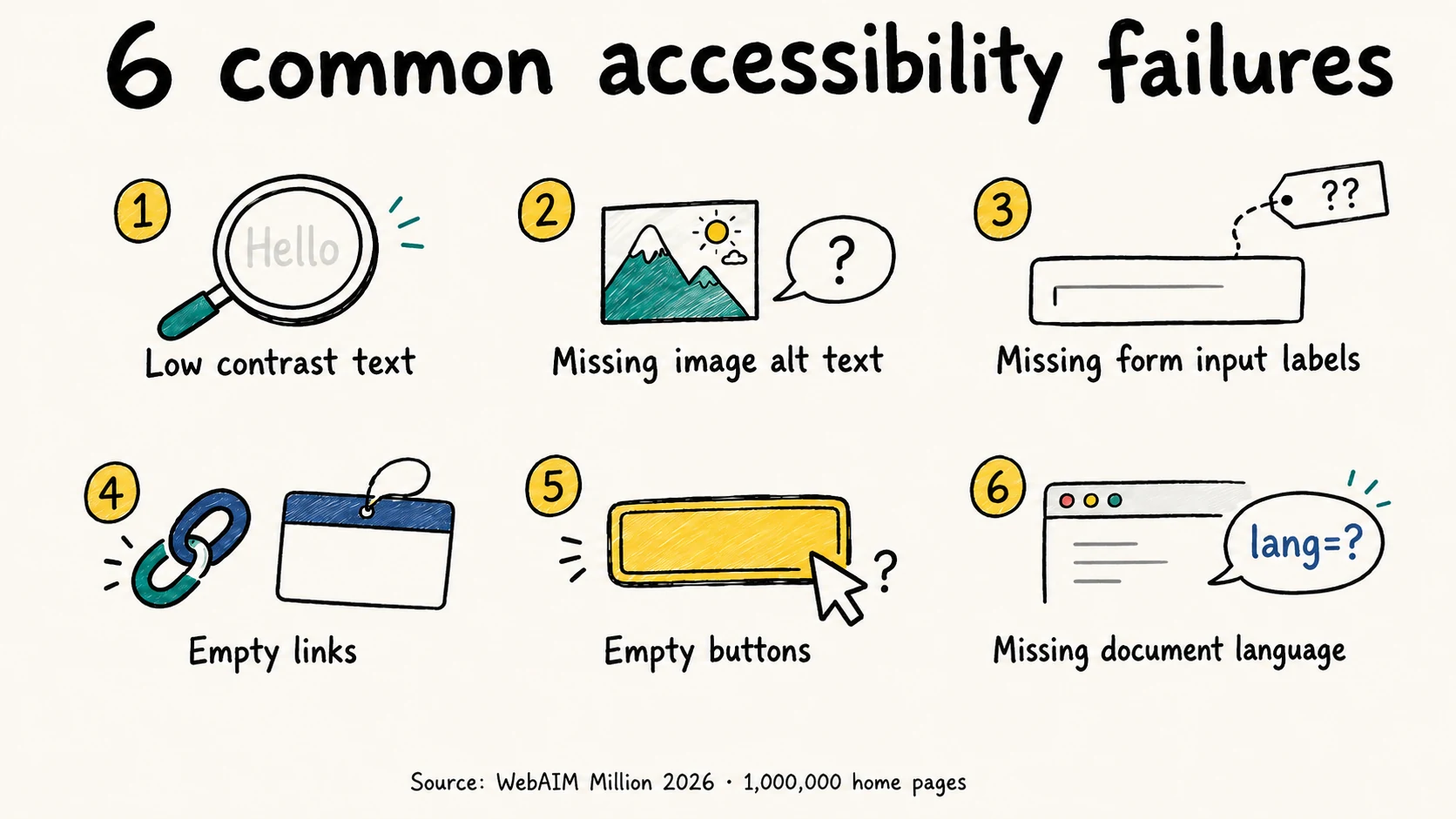
WebAIM has repeatedly found the same common problems across the web: low contrast, missing alternative text, unlabeled form controls, empty links, empty buttons, and missing document language.
Several of these also make browser automation harder.
A clickable div instead of a button
<div class="btn-primary" onclick="submitOrder()">Place Order</div><button type="submit">Place Order</button>These two elements can look identical, but they are not identical to the browser. The button element already has button semantics, keyboard behavior, and a clear mapping into accessibility APIs. The clickable div does not.
A screen reader user benefits from the real button. So does an automated test or agent searching for a control by role and name. One better HTML element solves several problems at once.
An input without a real label
<input type="text" placeholder="Search..." /><label for="site-search">Search products</label>
<input id="site-search" type="text" placeholder="Search..." />A person looking at the page may understand the first field from context. Software has less room for guessing.
If the browser exposes only an unnamed textbox, an agent may not know whether it expects a product search, an email address, a coupon code, or something else. A properly connected label removes that uncertainty.
A changing interface with no exposed state
<div class="dropdown-header" onclick="toggleMenu()">Options</div><button aria-expanded="true" aria-controls="menu-list">Options</button>
<ul id="menu-list">
...
</ul>If an agent activates a menu and checks the page again, aria-expanded="true" gives it a clear signal that the menu opened. Assistive technology gets the same information. Without an exposed state, software has to rely on less reliable clues.
Why accessibility overlays are not the main fix
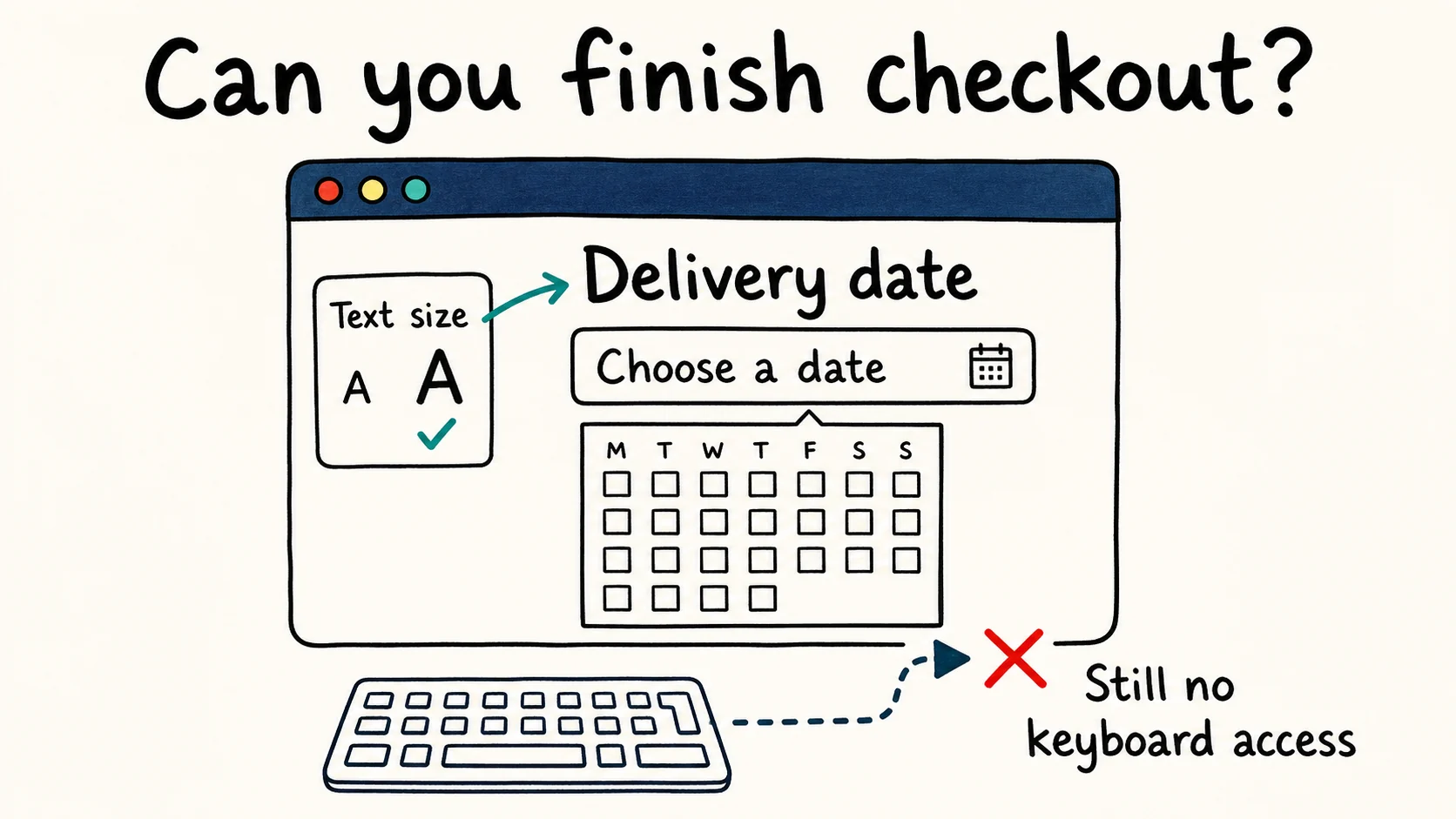
Accessibility overlays are usually JavaScript tools added to an existing website. They often provide controls for things such as text size, contrast, or other presentation settings.
Those features may change the user experience, but they should not replace fixes to the underlying HTML and components:
Visual presentation
        |  is built from
DOM and component structure
        |  is exposed as
Accessibility information — roles, names, states, relationships
If a custom component has poor semantics, the stronger fix is usually to repair that component directly.
Turn the clickable div into a button. Add the missing label. Expose the menu state correctly. Fix the source instead of depending on a separate layer to compensate for it.
The legal record also shows why organisations should be cautious about broad compliance claims. In April 2025, the FTC approved a $1 million final order against accessiBe over claims that its AI-powered product could make any website WCAG compliant. Accessibility cannot safely be reduced to installing a widget and assuming the problem is solved.
Is accessibility now infrastructure rather than compliance?
For years, accessibility was often placed in the "compliance" or "risk" category. That view is becoming too narrow.
| Perspective | Traditional view | AI-enabled web |
|---|---|---|
| Who benefits? | People using assistive technology | People using assistive technology plus automated systems |
| Who reads the structure? | Screen readers and other AT | AT, testing tools, browser automation, AI agents |
| Cost of failure | Excluded users and legal risk | Excluded users, legal risk, broken automation and potentially failed transactions |
| Business view | Risk reduction | Risk reduction plus interface infrastructure |
AI has not suddenly made accessibility worthwhile; it was already worthwhile. The new point is that the same structure that helps a screen reader user can also make a website easier for software to understand and operate. That gives teams one more practical reason to invest in it.
Audit your own site in five steps
Inspect the accessibility tree. Open Chrome or Edge DevTools and inspect the accessibility information for your main user flows. Check whether buttons, links, and form controls have meaningful roles and names.
Check every form field. Make sure every
input,select, andtextareahas a clear programmatic label. Prefer a visiblelabelelement where possible.Find fake buttons and links. Search for click handlers attached to non-interactive elements. Where appropriate, replace them with native
buttonandaelements.Add automated accessibility testing. Tools such as axe-core can catch many common regressions during development or in CI instead of months after release — though it is worth knowing how much of WCAG an automated scan can actually prove before relying on a green result.
Test the page the way automation sees it. Try locating important controls with semantic selectors such as
getByRole('button', { name: 'Place Order' }).
If an important control has no usable role or accessible name, investigate why. This makes accessibility problems visible to developers in terms they already understand.
If step 1 turned up controls with no accessible name, a free scan will list every one of them on a page in about 30 seconds.
Do we need a new accessibility standard for AI?
None of this requires a new accessibility standard for the AI era. The core recommendations are familiar:
- use native HTML elements when they fit the job;
- give form controls proper labels;
- expose important component states;
- use headings and landmarks meaningfully;
- test accessibility during development instead of only after release.
These practices helped screen reader and keyboard users long before browser agents became a serious topic.
The web does not need a special "AI-friendly" replacement for accessibility. In many cases, the answer is simply to build the interface correctly in the first place.
Accessible code gives humans a more usable web — and increasingly gives software a clearer web to understand as well.
See which of these failures your own page has
One URL, one scan, and the exact element plus the rule it breaks — no signup needed for the first report.
Run a free scanAccessiLume cites primary standards and published research. Statistics verified against primary sources.
- WebAIM. The WebAIM Million — 2026 Report. Utah State University, February 2026.
- Deque Systems. From Debt to Dividend — Advancing Accessibility in AI Development. July 2026.
- GAAD Foundation. AIMAC — AI Model Accessibility Checker Leaderboard. In collaboration with ServiceNow, accessed August 2026.
- Microsoft. Playwright MCP — Snapshots. Accessed September 2026.
- Federal Trade Commission. FTC Approves Final Order Requiring accessiBe to Pay $1 Million. April 2025.